- Login to the Dropbox Forms portal and click “API Keys” on the left.
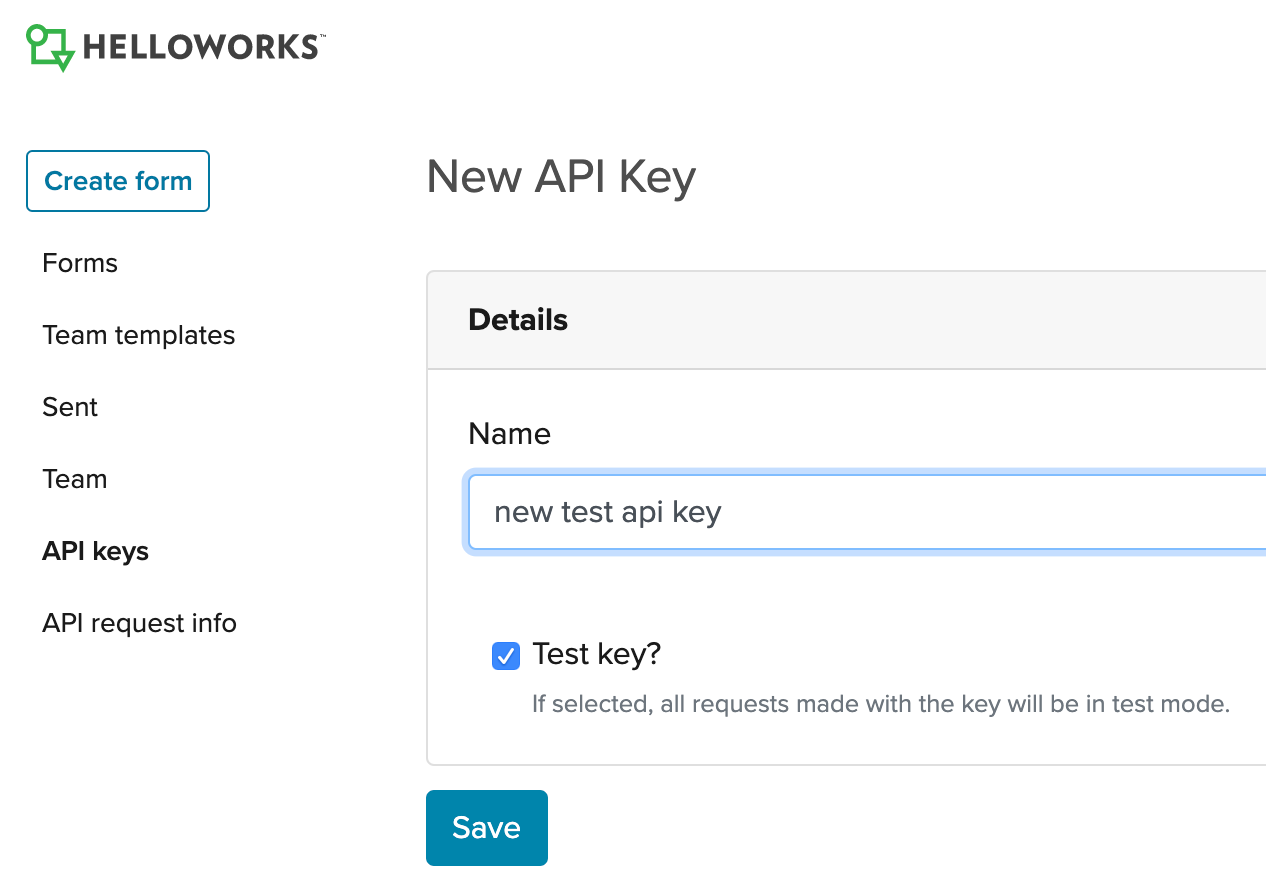
- Click the “New Key” button on the right to create a new API key.
- Fill in the appropriate information and save the new key. For this example, this will be a test API key to ensure all requests sent are in test mode and not legally valid.
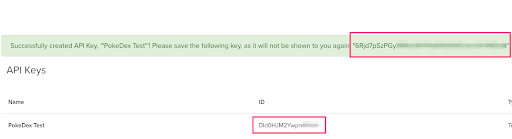
- A notification will appear with your API key - save this information as it will not be shown again.
- Your new API Key will be listed with an ID as well, which is your public API key ID. Save both these keys - you will need them in future steps.
- Click the “API Request Info” section on the left and open the appropriate form
- Save the workflow ID listed - you will need this in a future step as well.

- Go back into the “Forms” section and “Edit” this Form. Then click “Code Editor” to reveal the advanced portion of this form. Don’t make any changes to this part!
- Save the Role ID for a future step:

- Set up a Google Sheet with columns for email addresses and names to receive email notifications to complete a Dropbox Forms form.

- Login to Zapier and start a new Zap
- Select Google Sheets as the Trigger App
- Select the specific Google Sheets Trigger. This example uses the “New or Updated Spreadsheet Row” Trigger.
- Connect your Google Sheets account and select the appropriate Spreadsheet.
- Test the Trigger to ensure it’s working as expected.
- Add an Action to the Zap and select “Webhooks by Zapier” from the Built-In Apps section.
- Select the “GET” option.
- Set up your Zapier “GET” Webhook according to the Dropbox Forms API Documentation for the Get Auth Token endpoint. This endpoint retrieves a JSON Web Token (JWT) for authentication on future API requests.
- Enter the URL https://api.helloworks.com/v3/token/[API_KEY_ID], replacing the [API_KEY_ID] with your public API key ID from step number 5.
- Enter Headers key, value pairs as these:
- Authorization: Bearer [API_KEY], replacing [API_KEY] with your private API key from step 5.
- Cache-control: no-cache

- Save and test this webhook in the next step. The response should contain token and expires_at data, then click “Continue.”

- Add another Action to the Zap and select “Webhooks by Zapier” from the Built-In Apps section.
- Select the “POST” option.
- Set up your Zapier “POST” Webhook according to the Dropbox Forms API Documentation for the Create Workflow Instance endpoint. This endpoint creates an instance of a Workflow to send out to a user’s email address.
- Enter URL: https://api.helloworks.com/v3/workflow_instances
- Enter Payload Type: form
- Enter Data Key, value pairs:
- participant [ROLE_ID][full_name] (replacing ROLE_NAME with the signer role specified when creating the workflow): Pull in the 'full name' from the Zap's step 1
- participant [ROLE_ID][value]: Pull in 'email' from Zap's step 1
- participant [ROLE_ID][email]
- workflow_id: ID from step 7
- callback_url: your callback handler’s URL

- Enter Headers key, value pairs as these:
- Content-Type: application/x-www-form-urlencoded
- Authorization: Bearer [TOKEN], replace [TOKEN] with ‘Data Token’ from the Zap's step 2
- Continue and test this webhook.
- Save this and you can enter in the callback URL after creating that Zap!
Creating a New Dropbox Forms Instance from a Google Sheet Using Zapier

Comments
0 comments
Article is closed for comments.